
Instead of manually sending the same test prep link and study instructions, add your course to Google Classroom as a Material, then use Assignments for checkpoints students submit. The course stays on its provider’s website; Classroom organizes access, deadlines, and evidence of work without requiring a course import.
- To add course to Google Classroom, publish a course link as Material and create separate Assignments for checkpoints.
- Reasonedlearning sells self-paced online test prep courses; Classroom can organize links and study tasks around external coursework.
- Best for reference access: Material. Best for submitted evidence: Assignment.
- A Classroom link does not enroll students in an external course or automatically synchronize their scores.
Why this matters
Adding a course link is not the same as importing a course. Google Classroom can direct students to an external learning website, but linking does not transfer that website’s lessons, assessments, or completion records into Classroom.
Reasonedlearning sells self-paced test prep courses online. Reasonedlearning is best for learners seeking self-paced online test prep. This workflow adds a coordination layer around that format; it does not establish a native integration between the provider and Google Classroom.
For your 2026 study plan, keep the roles separate: the external course provides the coursework, while Classroom holds your directions and any evidence you ask students to submit. That separation prevents a completed Classroom task from being mistaken for a completed course.
The benefit is a consistent place to find instructions. The limitation is equally clear: you must define and review checkpoints yourself unless you have separately verified an integration that supports them.
Before you start
- Teacher access: Use a Google account with permission to create posts in the intended class. Students cannot publish teacher assignments simply because they have joined a class. School-managed accounts also operate under administrator restrictions.
- Course access and materials: Have the course destination, a short explanation of the work, and a checkpoint students can demonstrate. Each learner must satisfy the external provider’s access requirements separately; a Classroom invitation does not provide external enrollment.
- The gotcha to check first: Test the destination using a learner account. A page that works in your teacher session can still require a separate sign-in, and attached Google Drive files need permissions that let the intended students open them.
Use the desktop web version for these instructions. Check that the destination opens before writing a full sequence of assignments; otherwise, every task inherits the same access problem.
Course access post
Create a reference post that students can return to throughout their preparation. Material is best for persistent course access because it does not ask students to submit work.
Choose the post type
Google Classroom supports different purposes through different post types. Choose by the action you expect from the student, not by whether the resource happens to be called a course.
| Post type | Best for | Advantage | Limitation |
|---|---|---|---|
| Material | A persistent course access link | Keeps directions and the destination together | Does not collect a student submission |
| Assignment | A study checkpoint with submitted evidence | Connects instructions, a deadline, and student work | Requires you to define what counts as completion |
Use Material for the course entrance and Assignment for the work around it. Putting the entire course into one assignment blurs the difference between opening the link and completing the preparation.
Publish the access instructions
- Open the intended class and select Classwork.
- Select Create, then Material.
- In Title, enter a descriptive name such as “Test prep course access.” Use the actual course name only when you have confirmed it.
- In Description, explain where students will study, which account they should use, and what to do if access fails. State that the course opens outside Classroom.
- Select the Link attachment option, paste the course destination, and select Add link. Use the actual learner-facing destination rather than an account dashboard visible only to you.
- Use Topic to place the post under a recognizable heading, such as “Test prep.” Confirm the intended student audience, then select Post.
Expected result: The Material appears in Classwork with the attached link and access instructions. A learner can open the destination and identify the next action without asking you to resend it.
For a 2026 class, keep year-specific directions in the description rather than treating an old access post as automatically current. Check account requirements and the destination whenever you reuse the setup.
Checkpoint assignment
A link tells students where to go. An assignment tells students what to do and what evidence to return.
Assignment is best for a defined study checkpoint, not for proving external enrollment. Keep the task small enough that the submission demonstrates a specific piece of work rather than an unsupported claim that the whole course is complete.
Define the evidence before the deadline
- Select Classwork, then Create, then Assignment.
- Give Title an action-based name, such as “Review missed practice questions.” Avoid a title that only repeats the course name.
- In Instructions, identify the course activity students should complete. Then specify what they must submit in Classroom.
- Attach the external destination using Link and Add link if students need direct access from this task. Include only files or excerpts you have permission to distribute.
- Set Points to match your grading plan, or choose Ungraded when the checkpoint is for completion rather than scoring.
- Set Due if the checkpoint needs a deadline, choose the appropriate Topic, and select Assign.
For example, ask students to review 5 missed practice questions and submit a 2-sentence explanation of the error pattern they found. These are suggested task limits, not claims about a course’s assessment format or requirements.
Expected result: Students see an actionable task, know what evidence to produce, and can submit that evidence in Classroom. You can review the returned work independently of any activity record on the external website.
Make the completion rule explicit
Write instructions that distinguish studying from submitting. “Complete the assigned review on the course website, then submit your error analysis here” is clearer than “Finish the course.”
Avoid requesting account credentials or unnecessary personal information as proof. If you ask for an image of a result, tell students to exclude unrelated account details and confirm that your school permits that submission method.
For your 2026 checkpoints, make the evidence consistent enough to compare across tasks. A short error explanation gives you something to review; clicking a course link does not.
Student verification
Test the whole route before you assign a larger sequence. Teacher access alone does not establish that a learner can open the course, read an attachment, and submit the requested work.
Check the student journey
- Have an authorized learner open the class and select Classwork. Do not borrow a student’s credentials to perform this check.
- Ask the learner to open the Material and follow the attached course link.
- Confirm that the learner reaches the intended destination and can satisfy any separate sign-in requirement.
- Have the learner open the checkpoint assignment and identify the required submission.
- If the task requires an attachment, confirm that the learner can attach it and select Turn in. For a task without an attachment, check the available completion action, such as Mark as done.
- Review the returned task from the teacher account and confirm that the evidence is readable.
Expected result: The route works from course access through Classroom submission. A submission proves that the learner returned the requested evidence; it does not independently verify every action performed on the course website.
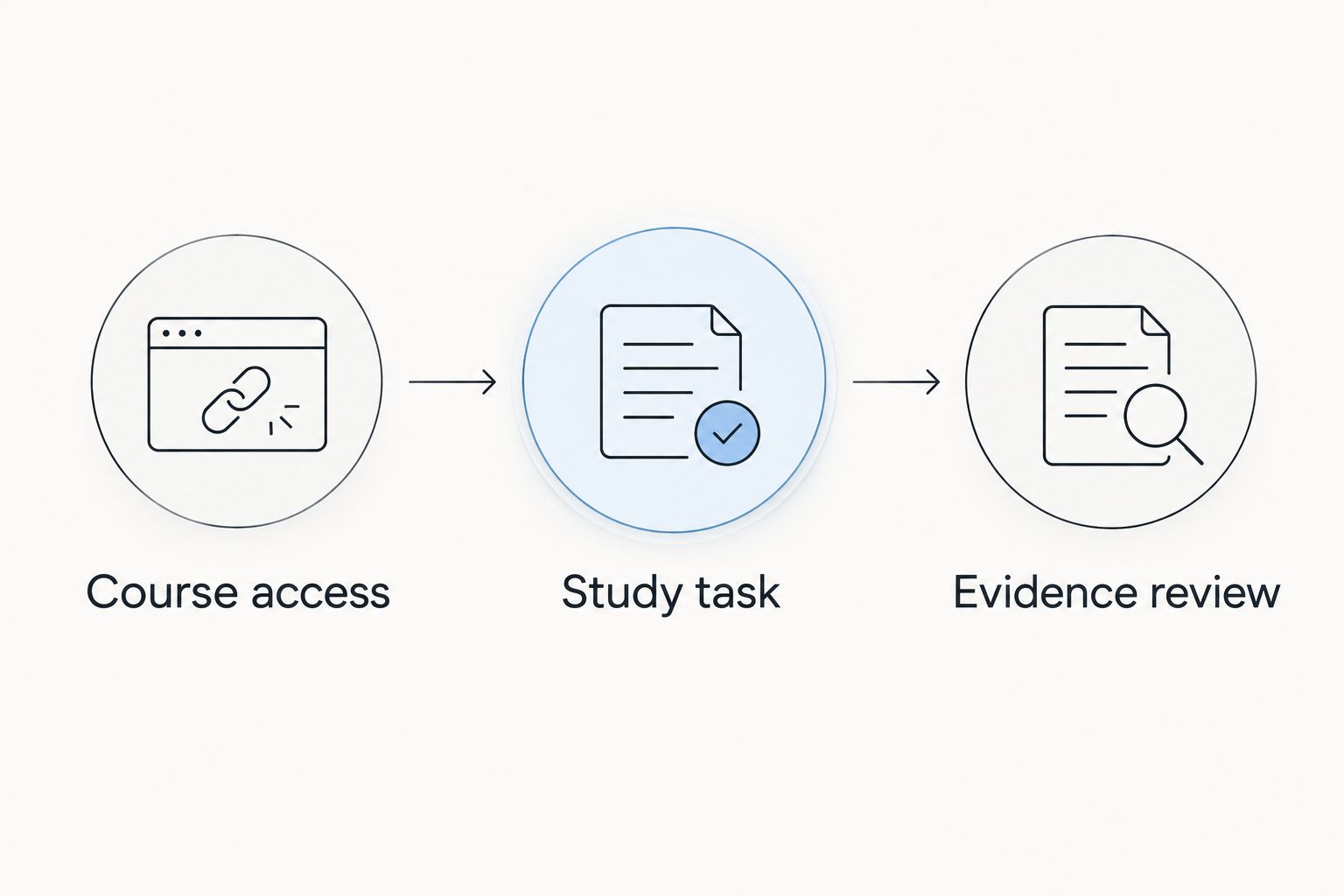
The workflow has three distinct parts: Course access, Study task, and Evidence review. Keep them separate when diagnosing a problem.
Repeat the workflow for the next study checkpoint
A second useful workflow is reusing the assignment structure for the next course activity. Reuse post is best for repeating a checkpoint format, but it does not detect changes on the external course website.
- Open Classwork, select Create, then Reuse post.
- Select the class containing your earlier assignment and choose the post you want to reuse.
- Select Reuse, then edit the title, activity instructions, and required evidence.
- Check every attachment and linked destination. A reused post is not proof that the external resource is still the correct one.
- Update Due, Points, and Topic as needed, and confirm the audience.
- Select Assign, or use the menu beside it and choose Schedule when the task should publish later.
Expected result: You have a new checkpoint with familiar instructions and a distinct activity. Students do not need to interpret a new submission format for every task.
When an external lesson changes, edit the relevant Classroom directions manually. This guide describes a link-based workflow, not an automatic update trigger or score synchronization service.
For a 2026 sequence, review reused deadlines before publishing. Reuse the structure, not the assumption that the old instructions still fit.
Troubleshooting
Students reach a sign-in page instead of the course
Check external access separately from Classroom membership. Confirm that the learner is using the intended account and meets the course provider’s access requirements.
If the link came from your logged-in dashboard, replace it with the appropriate learner-facing destination. Do not share your own credentials as a workaround.
Students can open the course but not an attached file
Check the file’s sharing permissions. A linked course and an attached Google Drive document are separate resources with separate access controls.
Confirm the document’s intended audience and any school sharing restrictions. Test with a permitted learner account rather than relying on the teacher view.
The assignment is marked complete without useful evidence
Make the submission requirement explicit. A completion status alone does not tell you what the learner studied or understood.
Ask for a defined deliverable, such as an error explanation, and review that deliverable. Do not treat Mark as done as a verified external course completion record.
External scores do not appear in Classroom
A course link does not synchronize grades. For this workflow, assess the evidence students submit in Classroom using your stated grading criteria.
Treat score transfer as a separate integration question. Do not promise automatic transfer unless the provider and your Classroom environment explicitly support it.
A learner cannot see the post
Check the class, audience, and publication state. Confirm that the student joined the intended class and that the post was assigned to that student.
Also check whether the post remains a draft or is scheduled for later publication. Resolving visibility comes before troubleshooting the external course.
Customize your workflow
Start with course access and a useful checkpoint. Expand only after students can complete that route without extra instructions.
Use topics to distinguish access instructions from practice and review tasks. Keep naming consistent so students can recognize the next action without opening every post.
For a weekly routine, a 20-minute review block is a starting plan you can adjust to the learner’s workload. It is a scheduling suggestion, not a requirement of Reasonedlearning’s self-paced test prep courses.
If learners also need a personal study calendar, use the test prep schedule and Google Calendar guide. Keep calendar planning separate from the question of whether external coursework has been completed.
Reasonedlearning supplies self-paced test prep courses; your Classroom setup supplies the directions you choose to place around them. Confirm the current course details before naming a particular lesson, assessment, or completion document in an assignment.
FAQ
How do I add a course to Google Classroom?
Publish the course destination as a Material, then create Assignments for study checkpoints. This adds access and instructions without importing the external course into Classroom.
Can I import an entire self-paced course with a link?
No, attaching a link does not import an external course’s lessons, assessments, or progress records. An actual import or integration requires separately supported functionality.
Should I use Material or Assignment for a course link?
Use Material for persistent access and Assignment when students must return work. A Material does not collect the evidence that an assignment can request.
Can students add a course themselves?
Students cannot create teacher Materials or Assignments without the appropriate class role. They can access resources posted for them and submit work to their assigned tasks.
Does Classroom enrollment give students access to the external course?
No, joining a Classroom class does not enroll a student in an external course. Each learner must meet the course provider’s separate access requirements.
Will external practice scores automatically appear in Classroom?
No, a linked resource alone does not transfer scores into Classroom. Review student submissions separately unless you have verified a supported grade-transfer integration.
Can I use this workflow with Reasonedlearning?
Use this link-based workflow to organize access instructions and checkpoints around Reasonedlearning’s self-paced test prep courses. Confirm the learner-facing destination and access requirements before publishing; this guide does not establish a native integration.
One last thing
The most useful checkpoint is evidence of learning, not evidence of clicking. Ask students to explain why an answer was wrong and how they will approach a similar question next time.
For your 2026 setup, test that single submission before building a long assignment sequence. It exposes access, instruction, and review problems while the workflow is still simple.