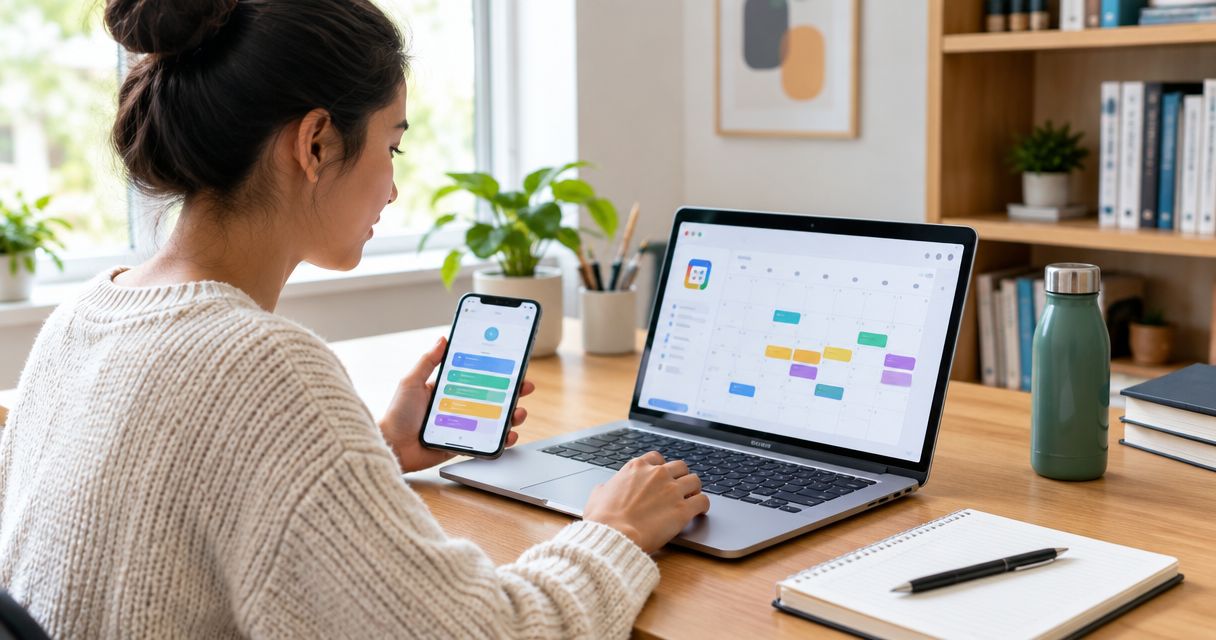
Instead of manually adding every test prep session, set up recurring Google Calendar events so your study time appears beside work, classes, and appointments. This guide shows you how to connect a self-paced study plan to your calendar, add reminders, and distinguish a one-time import from an updating calendar subscription.
- To sync study schedule Google Calendar entries, use recurring events for study blocks and subscriptions for supported calendar feeds.
- Reasonedlearning sells self-paced test prep courses; schedule study time separately in Google Calendar.
- Importing a calendar file copies events once; it does not keep your source study plan synchronized.
- Set an end date and test a reminder before relying on your study calendar.
Why this matters
A course tells you what to study. Your calendar reserves time to do it. Without that distinction, a lesson list remains a list of intentions rather than appointments you can see against your other commitments.
Reasonedlearning is best for learners seeking self-paced test prep rather than a fixed class timetable. Use Reasonedlearning as your course starting point, then build the calendar around your actual availability. This workflow does not require a direct course-to-calendar integration.
For your 2026 test prep plan, distinguish calendar visibility from course progress. An event can remind you to study, but it does not prove you completed a lesson or understood the material. Record those outcomes separately.
If you study around shifts or family commitments, the guide to test prep courses for working adults addresses the course-selection side of that decision. Here, the focus is turning your chosen plan into usable calendar appointments.
Before you start
- Accounts and access: Sign in to Google Calendar on a computer with an account that can create calendars and events. Have your course outline, available study windows, and intended test date beside you.
- Study materials: Identify the next topic, practice activity, and review task. For an import, obtain an actual calendar file; for a subscription, obtain a calendar-feed URL from the source that publishes it.
- The gotcha: Importing an ICS file is a one-time copy, not ongoing synchronization. A regular course-page URL is not a calendar feed, and a subscription does not give Google Calendar permission to update the original course schedule.
Use the desktop browser for the setup instructions below. Afterward, check the resulting events in the Google Calendar app you use day to day.
Choose the right connection method
Recurring events are the recommended starting point when you control your study timetable. Choose a subscription only when your schedule provider supplies a supported calendar feed. Use a file import when you need to copy a prepared schedule once.
| Method | Best for | Advantage | Limitation |
|---|---|---|---|
| Recurring events | Learners setting their own weekly study times | You control timing, reminders, and individual changes | Lesson changes require your own edits |
| ICS file import | Learners with a prepared, fixed schedule | Copies the supplied events into a calendar | Later source changes do not update the copied events |
| Calendar subscription | Learners with a supported, published calendar feed | Google Calendar can retrieve source updates | Updates are not necessarily immediate; subscribed events are generally read-only |
Reasonedlearning self-paced test prep fits the learner-controlled scheduling workflow. Its advantage is that you can choose your study windows; the limitation is that you must reserve and maintain those windows yourself. Do not treat this guide as evidence of a built-in calendar export or automatic lesson-progress connection.
Study calendar configuration
Create a separate calendar before adding sessions. That keeps your test prep events together and gives you a clear destination if you later import a schedule.
- Open Google Calendar in your desktop browser.
- Beside Other calendars, select +, then Create new calendar.
- In Name, enter a descriptive title such as Test prep 2026. In Description, identify the exam and the purpose of the calendar.
- Check Time zone against the location where you will study. Do not rely on a remembered setting from another account or an earlier trip.
- Select Create calendar. Return to the calendar view and confirm that the new calendar appears under My calendars.
- Keep the calendar selected so its events display beside your existing commitments.
Expected result: Your study calendar appears as a separate, selectable calendar. You can hide it without hiding your work or personal appointments.
Before scheduling anything, inspect your week with all relevant calendars visible. A slot that looks empty on the study calendar can still conflict with an appointment elsewhere.
Treat the test date differently from a study block. Enter the appointment using the date and time supplied by the testing provider, and retain its confirmation separately. A manually created calendar event is not an exam booking.
Recurring study event configuration
Use recurring events to reserve the time, then make each occurrence specific enough to act on. A title such as Study is less useful than a title that names the topic and task.
- Select Create, then Event. Add a title such as Algebra practice and error review.
- Set a start date, start time, and end time. As a starting template, reserve 30 minutes for a focused session; adjust that duration to the task and your availability.
- Use the calendar selector to choose your study calendar rather than leaving the event on an unrelated default calendar.
- Open Does not repeat and choose Custom. Set the recurrence to match the days you can consistently protect.
- Set an end date for the series. For a 2026 exam, stop the study series at the appropriate point instead of leaving it recurring indefinitely.
- In Description, enter the lesson or topic, the practice task, and what you will record afterward. Paste an existing lesson link only if you have it from your course account.
- Select Add notification and set a reminder. A notification 10 minutes before the session is a starting setting, not a requirement.
- Select Save. Open a later occurrence and confirm that its time, calendar, and description match your intended setup.
Expected result: Your chosen study days contain repeating events on the dedicated calendar, with a defined end date and a reminder attached.
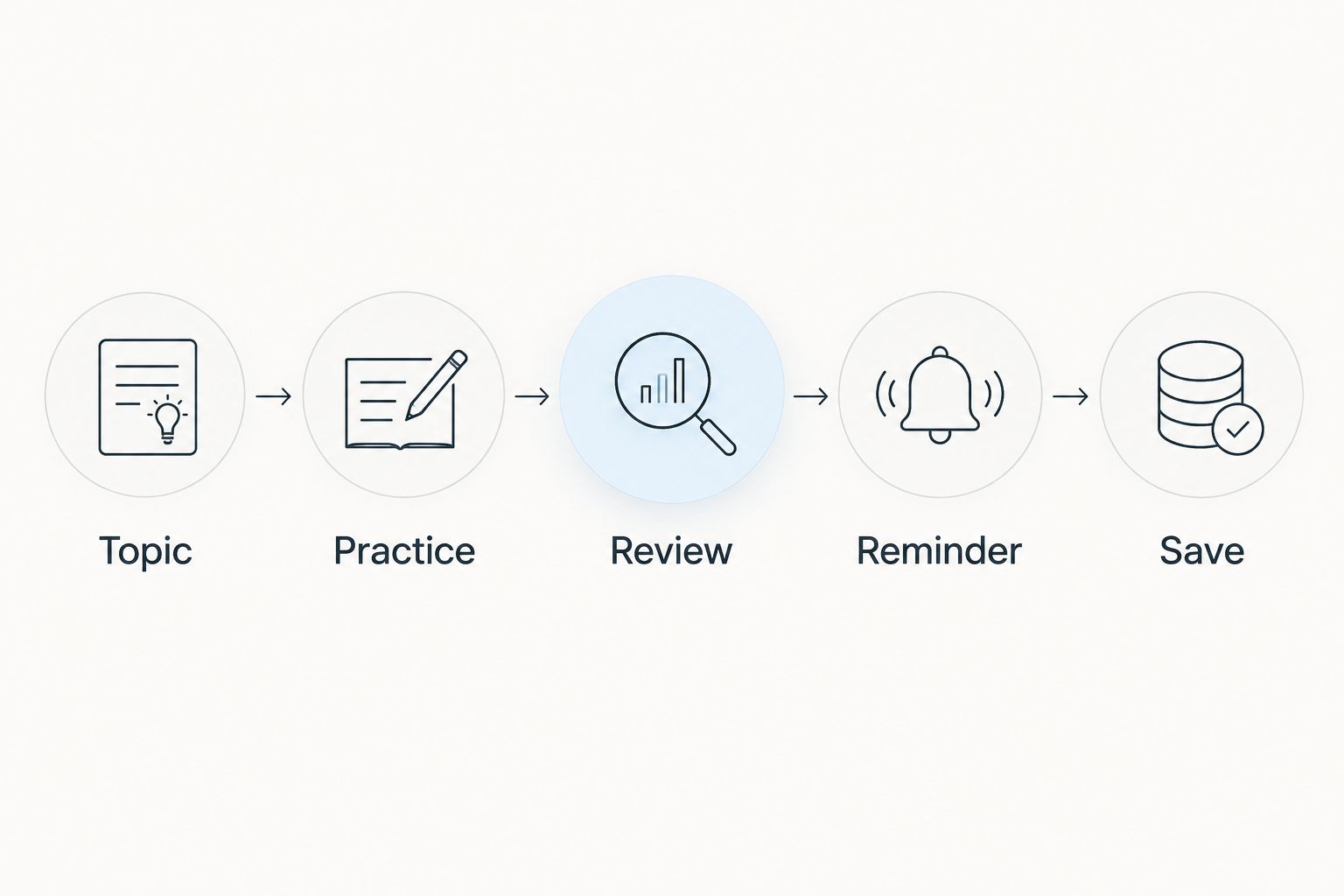
Use a simple description pattern: Topic, Practice, Review. Under Topic, name the material. Under Practice, state the task. Under Review, specify the evidence you will keep, such as an error explanation or a list of questions to revisit.
Keep recurring descriptions broad when the topic changes every session. A repeated instruction such as Complete the next assigned practice set stays useful; a specific lesson title copied across the entire series becomes misleading once that lesson is finished.
Reminder and schedule validation
Validate the calendar before filling it with more events. A visible appointment and a working notification are separate checks.
- Create a temporary event with enough lead time for its chosen notification to occur.
- Confirm that the event belongs to your study calendar and has a notification attached.
- On your phone, open Google Calendar using the same account. Ensure the study calendar is selected for display.
- Check that your device permits Google Calendar notifications. If you use browser notifications, check the browser's permission for Google Calendar as well.
- Wait for the test notification, confirm that it arrives, then delete the temporary event.
- Review the first 1 week of study appointments against your real commitments. Move conflicts before treating the schedule as ready.
Expected result: The same study events appear where you expect them, and your test reminder arrives on the device you intend to use.
Do not schedule every available hour. Leave room to review mistakes and finish interrupted work. Otherwise, moving one unfinished session creates conflicts with the next session instead of giving you a workable recovery plan.
For Reasonedlearning self-paced test prep, use the calendar as a time commitment, not an automated completion record. After each session, record what you finished and identify the next task in your own study notes.
Update your calendar when your study plan changes
There are two different update situations: changing your own recurring study blocks and receiving changes from a published source. Choose the workflow that matches who controls the schedule.
Changes to your own recurring events
Open the affected occurrence and edit its time or description. When you save a recurring-event change, Google Calendar asks which events the change applies to.
- Select This event when only that session needs to move.
- Select This and following events when your timetable changes from that point onward.
- Select All events only when the change belongs across the full series.
Expected result: A one-off interruption moves one session; a lasting timetable change updates the intended portion of the series. Inspect the next occurrence after saving to verify the scope.
During 2026, keep the existing series end date in view when making changes. A new weekly pattern should not quietly extend beyond your intended preparation period.
Changes from a published calendar feed
If your schedule provider supplies a calendar-feed URL, open Google Calendar on a computer. Beside Other calendars, select +, then From URL. Paste the supplied feed URL into URL of calendar and select Add calendar.
Expected result: The subscribed calendar appears under Other calendars. Google Calendar retrieves events from that source, but source changes are not guaranteed to appear immediately.
Do not try to repair a subscribed lesson time by editing the source event inside Google Calendar. Change the schedule at its source if you control it, or create a separate personal study block around the published event.
A fixed schedule supplied as a file
For an ICS file, open Settings, then Import & export. Under Import, use Select file from your computer, choose the file, select your study calendar in Add to calendar, and select Import.
Expected result: The file's events appear in the destination calendar as imported copies. Changes made later to the original schedule do not update those copies.
Before importing a replacement file, compare it with the existing events. Repeated imports can create duplicates. Keep a fixed imported schedule separate from your own recurring study blocks so you can identify which appointments came from which method.
Troubleshooting
Study events are missing on your phone
Check the signed-in account first, then check whether the study calendar is selected in the app. On Android, also inspect the calendar's sync setting. An event appearing on the desktop confirms its creation, not its visibility in every mobile view.
Reminders do not arrive
Open the event and confirm that a notification exists. Then check device notification permissions and any focus or do-not-disturb settings that suppress alerts. Repeat the temporary-event test after changing permissions.
Imported events appear twice
Check whether you imported the same schedule more than once or combined an import with a subscription to the same source. Remove the duplicate copies after confirming which calendar contains them. Hiding a calendar changes visibility; it does not remove duplicate events.
Sessions appear at the wrong time
Compare the event time zone, the calendar time zone, and your device settings. For imported events, inspect the source file's time information before assuming the import process caused the difference. Keep exam appointment times tied to the provider's stated time zone.
A feed update has not appeared
Confirm that the event changed at the source and that you subscribed rather than imported a file. Calendar-feed refreshes are not immediate. For a time-sensitive change, consult the source schedule directly instead of waiting for the calendar display to catch up.
Customize your workflow
Once the basic calendar works, separate learning sessions from review sessions. Learning sessions name the next topic; review sessions point to previous mistakes. This makes a missed session easier to reschedule without losing its purpose.
For your 2026 plan, add a regular calendar review before the next study week begins. Check completed work in your study notes, adjust upcoming tasks, and remove appointments that no longer serve the plan. Do not mistake a full calendar for useful practice.
Expand the workflow by adding a distinct practice-test appointment when your course plan calls for one. Put preparation requirements in its description and reserve review time separately. Use the actual test instructions to determine timing rather than copying the duration of an ordinary study block.
FAQ
How do I sync my study schedule with Google Calendar?
Create recurring study events on a dedicated Google Calendar, or subscribe to a supported calendar feed supplied by your schedule provider. Recurring events reserve your own study time; a subscription retrieves events from a published source.
Does Reasonedlearning automatically sync lessons to Google Calendar?
This workflow schedules Reasonedlearning study time separately in Google Calendar; it does not establish an automatic lesson integration. Use recurring appointments unless your course account explicitly provides a calendar export or feed.
Is importing an ICS file the same as syncing a study schedule?
No. Importing an ICS file copies events once, while a calendar subscription lets Google Calendar retrieve updates from the published feed. Imported copies do not track later source changes.
Can I move one study session without changing the whole schedule?
Yes. Edit the recurring occurrence and select This event when Google Calendar asks which events to change. Inspect the next occurrence afterward to confirm that the rest of the series stayed intact.
Why are my study reminders not showing up?
Check that the event has a notification and that your device allows Google Calendar notifications. Also check focus settings and test a temporary event after making changes.
Can Google Calendar mark my course lessons complete?
A study event does not record course completion. Keep completed lessons, practice results, and review notes in your course account or a separate study record.
Can I set up my study calendar entirely on my phone?
Use a desktop browser for the calendar creation, file import, and URL subscription instructions in this guide. Then use the mobile app to view sessions, check reminders, and make supported event edits.
One last thing
Give unfinished work a new appointment, not just a new intention. When a session ends early, record the exact remaining task and assign it to a suitable future block. Leaving the original event in the past does not create another opportunity to finish it.