
Instead of copying lesson updates into a spreadsheet after every study session, connect a Google Form to Google Sheets so each submitted update becomes a dated progress record. This 2026 workflow automates the spreadsheet entry—not the reading of your course dashboard—and shows you how to track course progress in Google Sheets without assuming your course supports an integration.
- To track course progress Google Sheets, connect Google Forms to a study log; submissions become spreadsheet rows.
- Reasonedlearning sells self-paced test prep courses; this tracker works separately from the course dashboard.
- Count unique completed lessons, not submissions, to prevent repeat study sessions from inflating progress.
- Use CSV imports only when your course provides an export; neither workflow proves exam readiness.
Why this matters
A course dashboard and a study plan answer different questions. The dashboard records activity inside the course; your study log can record what needs review and what you plan to do next.
Reasonedlearning is best for learners who want self-paced test prep courses. If you study with Reasonedlearning, keep the tracker separate from the course: recording a completion in Sheets does not mark a lesson complete in the learning platform.
For your 2026 study plan, separate completion from understanding. A finished lesson can still need another practice session, and a spreadsheet should preserve that distinction rather than treating every completed item as mastered.
Before you start
- Accounts and materials: You need access to Google Forms and Google Sheets, permission to create files, and your course's lesson list. Copy lesson identifiers from the course when they exist; otherwise assign consistent identifiers yourself.
- Completion definition: Decide what counts as completed and which lessons belong in your total. Keep optional material separate unless you deliberately include it in the denominator.
- The gotcha: Google Forms sends submitted answers to Sheets; it does not read your course account. For dashboard-to-spreadsheet sync, first confirm that your course provides an export or a supported integration. Do not enter your course password into the tracking form.
Use this guide's form workflow when you control the study log but do not have a verified course integration. Its advantage is a repeatable entry process; its limitation is that you still report your own activity.
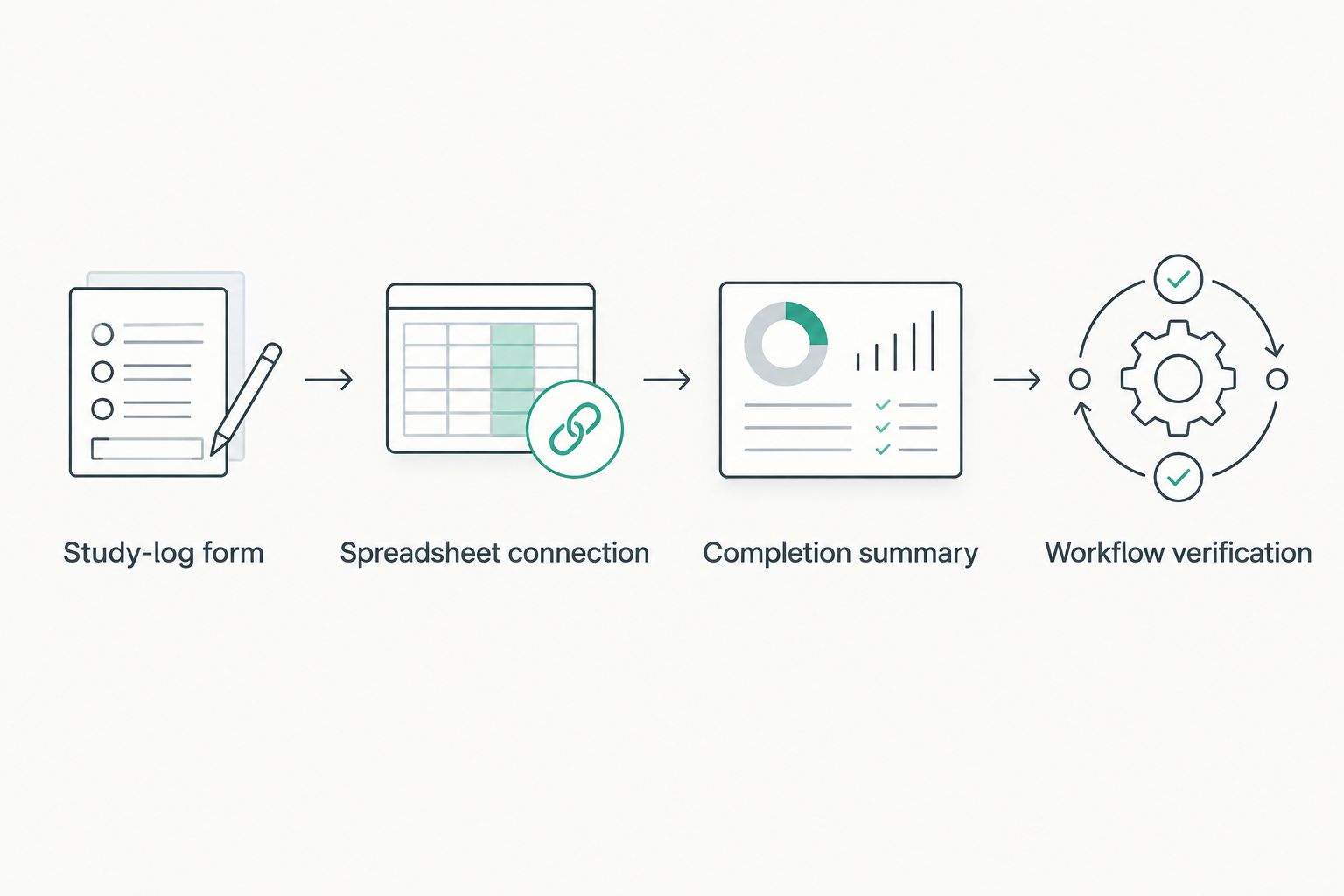
Study-log form
Build one form for the courses you want to track. Keep the questions consistent so the spreadsheet can distinguish a repeat attempt from a newly completed lesson.
- Open Google Forms and choose Blank form. Name the form something descriptive, such as Study log.
- Add the questions below in the listed order. The order determines the spreadsheet columns used by the formulas later in this guide.
- Select the specified question type from each question's type menu. Turn on Required for every question except Next action.
- For Status, enter the choices exactly as shown. The completion formula checks the text
Completed. - Use Preview to check that the form asks for lesson-level information rather than a vague summary of your session.
| Question you create | Question type | What to enter |
|---|---|---|
| Course | Short answer | A consistent course name or identifier |
| Lesson ID | Short answer | A stable identifier for the lesson |
| Lesson title | Short answer | The title you recognize in the course |
| Status | Multiple choice | In progress, Completed, Needs review |
| Study minutes | Short answer | A numeric duration, without the word minutes |
| Study date | Date | The date you actually studied |
| Next action | Paragraph | The exercise, topic, or lesson to tackle next |
For Study minutes, use the question's Response validation setting and choose Number with Greater than or equal to and a value of 0. This keeps text entries out of a column you might later total.
Expected result: You have a reusable form with consistent course, lesson, status, and date fields. Enter time as a number; use Next action for explanations rather than changing the Status choices.
Spreadsheet connection
Connect the form before you start collecting real study records. Google Forms adds a submission timestamp alongside the answers, giving you both the entry date and your separately recorded study date.
- In the form, open Responses and select Link to Sheets.
- Choose Create a new spreadsheet, give it a descriptive name, and select Create.
- Open the linked spreadsheet. With the question order above, its columns should be Timestamp, Course, Lesson ID, Lesson title, Status, Study minutes, Study date, and Next action.
- Double-click the response sheet's tab name and rename it
Study Log. The formulas below use that exact tab name. - Return to the form and select Publish. Follow the access prompts for your intended respondents; keep a personal study form limited to the people who need it.
- Submit a test response through the published form, then check the linked spreadsheet.
Expected result: The submitted response appears as a new row in Study Log without a separate copy-and-paste step. If the columns differ, correct the question order or adjust the formulas before using the tracker.
Do not add calculated columns between the form's answer columns. Put summaries on a separate tab so the incoming response structure stays easy to inspect.
For a 2026 tracker shared with a tutor, distinguish form access from spreadsheet access. Someone allowed to submit a response does not automatically need permission to edit your study history.
Completion summary
Create a summary that counts distinct completed lessons. Counting response rows would overstate progress whenever you submit another update about the same lesson.
- Add a sheet using the + button and rename it
Summary. - Enter these headers across the first row: Course, Total lessons, Unique completed lessons, Completion percentage.
- In cell A2, enter the course identifier exactly as you use it in the form. In B2, enter the total number of lessons included in your completion definition.
- In C2, enter
=IFERROR(COUNTUNIQUE(FILTER('Study Log'!C2:C,'Study Log'!B2:B=A2,'Study Log'!E2:E="Completed",'Study Log'!C2:C<>"")),0). - In D2, enter
=IF(B2>0,C2/B2,""). Select the cell and choose Format > Number > Percent. - Add a separate summary row for each course. Copy the formulas down, then enter each course's identifier and lesson total.
Expected result: Each course has a completion count based on unique lesson IDs with a Completed submission. Repeating a Completed submission for the same lesson does not increase that count.
This formula measures lessons with a recorded completion, not each lesson's latest status. A later Needs review submission does not remove an earlier completion. That is deliberate: completion history and review needs are different measures.
If you restart a course and want a fresh completion count, use a distinct course identifier for the new study cycle. Otherwise, earlier completion records remain part of the total.
Workflow verification
Test the tracker before relying on its summary. A spreadsheet that accepts entries is not necessarily counting them correctly.
- Submit 2 completed submissions for the same course and lesson ID. Change the study date or Next action, but keep the identifier identical.
- Confirm that Study Log contains both responses while Summary shows 1 unique completed lesson.
- Submit another Completed response with a different lesson ID. Confirm that Summary now shows 2 unique completed lessons.
- Submit a Needs review response for the first lesson. Confirm that the completion count stays unchanged and that the review note appears in Study Log.
- Check that the course identifier in Summary matches the form entries exactly. Remove or clearly separate test records before recording real progress.
Expected result: The tracker preserves repeated study activity without treating it as additional course completion. Review notes remain visible even when the lesson already has a completion record.
Treat this verification as part of your 2026 setup, not a cleanup task after weeks of logging. Fixing an identifier convention early is simpler than reconciling a long history of inconsistent entries.
Update the tracker from a course export
A CSV workflow is the adjacent option when your learning platform provides downloadable progress data. It reduces retyping, but importing a file is not continuous synchronization.
Choose the workflow based on the information you can actually access:
| Workflow | Best for | Advantage | Limitation |
|---|---|---|---|
| Google Forms study log | Learners recording sessions and review notes | Each submission creates a dated spreadsheet record | Activity is self-reported, not read from the course |
| CSV import into Google Sheets | Learners whose course provides progress exports | Transfers the fields included in the export | Requires another import when the source changes |
For the export variant:
- Download the course progress file using the platform's documented export process. Do not assume an export exists because the dashboard displays progress.
- In Google Sheets, choose File > Import > Upload and select the file.
- Under Import location, choose Insert new sheet(s). Keep the imported snapshot separate from Study Log.
- Inspect the headers and sample records. Identify the course field, lesson identifier, and completion field before building calculations.
- Record the export date in the tab name or a nearby note. Compare later snapshots using stable identifiers, not row positions.
Expected result: You have a separate snapshot of the exported course data without overwriting your form responses. Adapt calculations to the export's actual structure; the form-specific formula above is not a universal CSV formula.
Do not append every full export to the same table and count the combined rows. Repeated snapshots contain repeated records and can make unchanged progress look like new activity.
Troubleshooting
Form submissions do not appear
Open Responses in the form and inspect the linked spreadsheet destination. Confirm that you completed a submission rather than merely opening Preview. Check that you are viewing the response tab, not Summary.
Completed lessons show a count of zero
Check the course text in Summary against column B in Study Log, then check that column E contains Completed. Extra spaces, different spelling, or changed question order break the intended match. Correct the records or update the formula's column references.
The count exceeds the lesson total
Inspect lesson IDs for inconsistent capitalization, spacing, or alternative names for the same lesson. Confirm that B2 includes the same lesson scope as the form. Do not hide the error by capping the percentage; fix the records or denominator.
The formula reports a parse error
Check the copied quotation marks, parentheses, and sheet name. Google Sheets formula separators depend on spreadsheet locale; a locale using semicolons requires semicolons instead of commas between function arguments.
Submission dates differ from study dates
Use Study date for when the learning happened and Timestamp for when you submitted the update. If timestamps appear in the wrong time zone, check File > Settings > Time zone. Keep the distinction when entering an earlier session.
Customize your workflow
Use the tracker to choose your next session, not just document the previous one. Filter Study Log for Needs review and read the associated Next action entries before opening your course.
For Reasonedlearning self-paced test prep, keep your personal notes outside any official assessment record. A completion percentage describes coverage of the lessons you selected; it does not establish a passing score, certification, or placement outcome.
Keep practice results separate from completion if you add them later. Record the assessment name and date alongside the result so you do not compare unrelated exercises as though they measure the same thing.
For your 2026 routine, restrict spreadsheet editing to people who maintain the log. Give collaborators only the access their role requires, and leave passwords, identity documents, and unrelated personal information out of study notes.
FAQ
How do I track course progress in Google Sheets automatically?
Connect a Google Form to Google Sheets to turn each submitted study update into a spreadsheet row. This automates recording the submission, not extracting activity from your course dashboard.
Can Google Sheets sync directly with my self-paced course?
Direct sync requires a supported integration or another documented way to access course data. Confirm what your learning platform provides before attempting a dashboard-to-spreadsheet connection.
Does Reasonedlearning automatically send course progress to Google Sheets?
This guide sets up a separate tracker for Reasonedlearning self-paced test prep, not a direct course integration. Your form submissions supply the spreadsheet records.
What is the best way to prevent duplicate lesson counts?
Count unique lesson identifiers among Completed records rather than counting submitted rows. Keep the same identifier whenever you revisit a lesson.
Will a Needs review update reduce my completion percentage?
Not with the completion formula in this guide. It preserves earlier completion records, so review needs remain separate from the historical completion count.
Can I import course progress from a CSV file?
Yes, when your course provides a CSV export. Import it into a separate sheet, inspect its fields, and build calculations around its actual identifiers and completion values.
Does finishing a test prep course mean I am ready for the exam?
Course completion does not establish exam readiness. Use practice assessments and review of missed topics alongside your lesson-completion tracker.
One last thing
Write the next action before you close the form. A completed lesson tells you where you have been; a specific review task tells you where to start next. Name the topic or exercise rather than entering a general reminder to study more.